Power and charging
Use the mechanical power switch to turn OnFlight Hub+ on or off. Charge it through its 5 V USB-C input.
For fastest charging, turn the power switch off. OnFlight Hub+ can also operate while charging, but powering the unit can increase charging time depending on the USB supply and temperature.
Battery life is 6+ hours. A full charge takes approximately 2.5 hours.
The Charging light illuminates while the battery is charging. The Fully Charged light illuminates when charging is complete.
A USB-C charger and cable are not included.
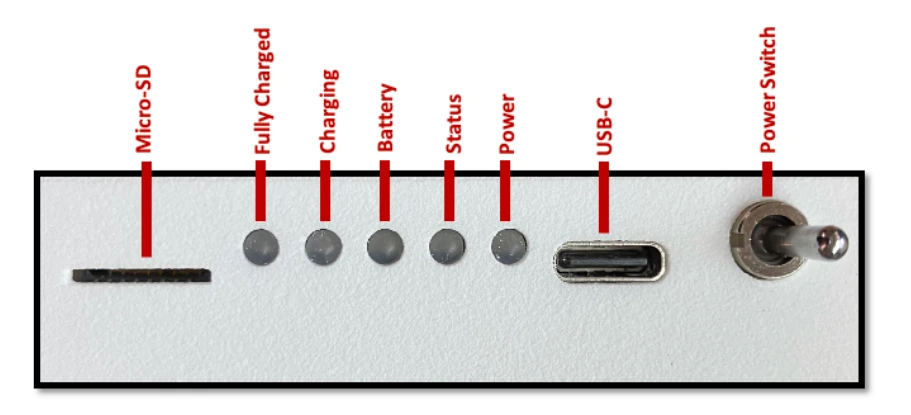
Recommended startup sequence
- Move the aircraft out of the hangar. OnFlight Hub+’s GNSS antenna needs a clear view of the sky. See Installation and orientation for antenna location and mounting guidance.
- Turn on any Bluetooth sensors. If using a heart rate sensor, enable heart rate broadcasting. OnFlight Hub+ searches for Bluetooth sensors during startup. See External sensors.
- Check that a microSD card is installed, then turn on OnFlight Hub+.
- Keep OnFlight Hub+ stationary for the first 5 seconds, with the engine off, while it estimates initial gyro biases.
- Conduct your preflight checks while OnFlight Hub+ acquires a GNSS fix and initializes.
- Check that the Status light is solid before starting the engine and taxiing.
- Taxi normally. Turns during taxi help the INS refine its heading alignment.
A solid Status light indicates that the inertial navigation system (INS) is initialized and healthy and a microSD card is present. It does not mean that heading is accurate while stationary.
LED indicators
| Light | Pattern | Meaning |
|---|---|---|
| Power | Solid | OnFlight Hub+ is powered on. |
| Status | Off, with Power light on | The INS has not initialized or GNSS reception no longer meets the required criteria. See Initialization. |
| Status | Solid | The INS is initialized and healthy, and a microSD card is present. |
| Status | Fast blink | No microSD card is detected. |
| Status | Slow blink | A fault was detected during startup self-checks. Contact support@bolderflight.com. |
| Battery | Blinking | Battery voltage is below the configured warning threshold. Recharge the battery. |
| Battery | Solid | Battery voltage is below the configured low-voltage threshold. Recharge the battery promptly. |
| Charging | Solid | The battery is charging. |
| Fully Charged | Solid | The battery is fully charged. |
Battery warning and low-voltage thresholds can be changed on the configuration page. Battery voltage is only a rough indication of remaining run time.
Initialization
Initialization has two parts: estimating initial gyro biases and acquiring a suitable GNSS fix.
OnFlight Hub+ combines accelerometer and gyro measurements with GNSS data to estimate aircraft attitude, velocity, and position. The inertial sensors track rapid changes in motion, while GNSS measurements correct accumulated drift. This is why both a secure mounting location and good GNSS reception matter. The magnetometer provides an initial heading reference; after initialization, the navigation solution relies on inertial and GNSS measurements.
A separate pressure sensor measures static pressure to calculate pressure altitude. Pressure altitude uses the standard reference pressure of 29.92 inHg (1013.25 hPa), so it may differ from both GNSS altitude and your aircraft’s altimeter reading when set to the local altimeter setting.
Initial gyro biases
During the first 5 seconds after power-on, OnFlight Hub+ estimates initial gyro biases. Keep it stationary during this period. Powering it on before starting the engine avoids engine vibration during this step.
GNSS acquisition
The INS requires a 3D GNSS fix and more than the configured minimum number of satellites before it can initialize. GNSS horizontal and vertical accuracy must also meet the configured thresholds.
The initial 5-second bias estimate does not mean that OnFlight Hub+ is ready. GNSS acquisition may take longer; use the Status light to check initialization.
If the Status light remains off, ensure that the antenna has a clear view of the sky. Use the live data on the configuration page to check GNSS reception, as described below.
Heading and motion-dependent data
Once the INS initializes, position, attitude, and speed estimates become available. Heading alignment improves as the aircraft moves and turns during taxi.
Heading is likely to be inaccurate below 10 knots. Ground track and flight path angle are not valid while stationary and require forward speed to produce useful results.
GNSS reception limitations
Loss of GNSS reception
If the Status light was solid and then turns off, GNSS reception no longer meets the required criteria and INS data may be unreliable.
Antenna placement and aircraft attitude affect reception. The integrated helical antenna supports reception through unusual attitudes, but an obstructed antenna can still reduce navigation accuracy.
Checking live GNSS data
The configuration page displays live data that can help troubleshoot installation and GNSS reception issues, including:
- GNSS fix
- Number of satellites used in the GNSS solution
- Horizontal accuracy
- Vertical accuracy
To view these values, connect to OnFlight Hub+’s Wi-Fi network and open http://192.168.23.1 in a browser.
If initialization does not complete, compare the live values with the configured initialization criteria. Check for a 3D fix and sufficient satellites. Also check that horizontal and vertical accuracy meet the configured thresholds. Smaller horizontal and vertical accuracy values indicate better estimated accuracy.
These values can also help you evaluate antenna placement. If reception is poor, reposition the unit or external antenna to provide a clearer sky view and observe whether the fix, satellite count, and accuracy improve. Allow time for the receiver to update after repositioning.
See Configuration for details on the live data and initialization settings.
Troubleshooting
| Symptom | What to do |
|---|---|
| Status light stays off after power-on. | Move the aircraft out of the hangar, check the antenna’s sky view, and allow time for GNSS acquisition. Use the configuration page to compare the live GNSS data with the configured initialization criteria. |
| Status light turns off after initialization. | Check for obstructed GNSS reception and review the live GNSS data on the configuration page. Treat INS data as potentially unreliable until the Status light returns to solid. |
| Status light blinks rapidly. | Turn off OnFlight Hub+ and check that a microSD card is fully inserted, then restart. |
| Status light blinks slowly. | A startup self-check failed. Contact support and include the log file from that startup. |
| Heading looks incorrect while parked or taxiing slowly. | Heading may be inaccurate below 10 knots. Normal movement and turns during taxi help the INS align. |
| Bluetooth sensor does not connect. | Turn on the sensor and enable broadcasting, if required, before restarting OnFlight Hub+. Discovery runs during startup. See External sensors. |
| Battery light blinks or remains solid. | Recharge the battery. A solid light indicates the lower of the two configured voltage thresholds. |
Perform an outdoor ground test
To help troubleshoot initialization, place OnFlight Hub+ outside with a clear view of the sky. Ideally this would be in an open field, away from buildings or tall structures. Insert a microSD card, turn it on, and let it run for several minutes while you check the Status light and live data on the configuration page.
Check the GNSS fix, satellite count, horizontal accuracy, and vertical accuracy. Comparing these results with those from the cockpit can help identify reception issues related to the installation.
Heading, ground track, and flight path angle are not reliable while stationary, so do not use them to judge the results of this test.
Contacting support
Contact support@bolderflight.com with a description of the issue and the log file from the affected flight or ground test, even if OnFlight Hub+ never completed initialization. For suspected data inaccuracies, include the approximate time in the flight when you noticed the issue.
Shutdown
After the flight or ground test, use the power switch to turn off OnFlight Hub+ before removing the microSD card.
See Recording and reviewing data for retrieving and reviewing your flight logs.