OnFlight Hub+ is a portable inertial navigation system and flight data logger. It records aircraft motion, position, and four integrated analog inputs at up to 100 samples per second, with a GPS-synchronized timebase. Choose an integrated helical antenna or an external antenna to suit your installation.
1. Prepare the OFH+
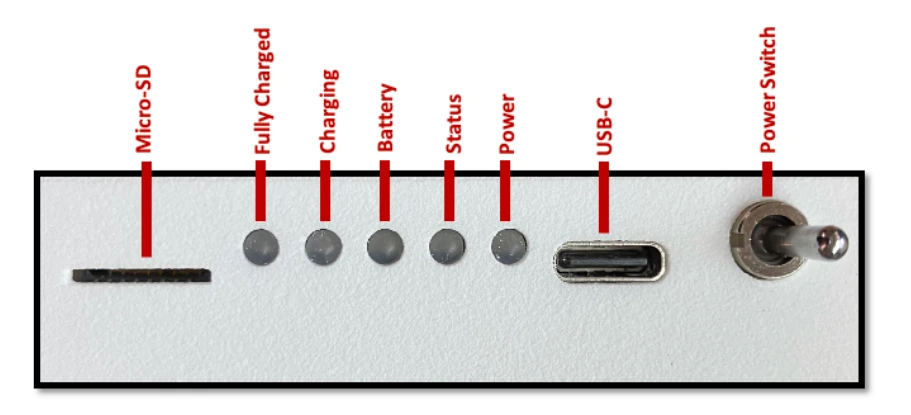
Charge OFH+ through its 5 V USB-C input. For fastest charging, turn the power switch off. OFH+ can also operate while charging.
Insert a FAT32-formatted microSD card before turning on OFH+. See Power and initialization for the switch, status indicators, and startup checks.
We recommend a 32 GB SanDisk Ultra or SanDisk Extreme, including their Plus and Pro variants.
2. Mount and align it
Mount OFH+ securely inside the cockpit. Give the GNSS antenna a clear view of the sky. For the external-antenna model, secure both the unit and its antenna, and route the cable clear of aircraft controls.
Use the #6-32 mounting flange, optional tripod adapter, or 3M Dual-Lock between the flat bottom of OFH+ and the glareshield. See Installation and orientation for the shared OnFlight Hub V2 mounting hole pattern.
The default orientation is +X forward, +Y toward the right wing, and +Z down. Use the Forward and Up markings on the case to align the unit. If you mount it differently, set its orientation matrix as described in Installation and orientation.
The pilot in command (PIC) is responsible for checking that OnFlight Hub+ is securely mounted and does not pose a hazard to the aircraft or its occupants.
3. Turn on optional sensors
Turn on compatible Bluetooth sensors before OFH+. For a heart rate sensor, enable Bluetooth heart rate broadcasting. OFH+ searches for sensors during startup. See External sensors.
4. Configure and calibrate analog inputs
For connected control-position sensors, configure and calibrate the analog inputs before recording.
5. Connect and configure
You can skip this step when OFH+ is already configured for the aircraft, installation, and desired recording format. Wi-Fi is not required to record data.
- Turn on OFH+ and allow about 30 seconds for its Wi-Fi network to appear.
- Join the unit’s OnFlight Wi-Fi network. Look for OnFlight Hub Plus followed by the serial number or your configured suffix. No password is required.
- Open http://192.168.23.1 in a browser.
- Review the aircraft information, Orientation, Datalog Format, and Datalog Rate.
- Settings save automatically. Wait for All changes saved before disconnecting or switching off.
To use ACROWRX software, select ACROWRX under Datalog Format before recording. No ACROWRX key is entered on OFH+. ACROWRX output is available immediately and produces
.acrowrx_plusfiles.
See Configuration for the complete settings reference.
6. Initialize before flight
Move the aircraft out of the hangar so the antenna has a clear sky view. Keep OFH+ stationary with the engine off for the first 5 seconds after power-on while it estimates gyro biases. Allow the navigation system to initialize during preflight checks.
Check for a solid Status light before starting the engine and taxiing. This indicates a healthy, initialized navigation system and a detected microSD card. Turns during taxi help refine heading alignment; heading, ground track, and flight path angle are not reliable while stationary.
See Power and initialization if the Status light does not become solid.
7. Record and review
OFH+ records automatically while operating. You do not need to press a record button or maintain a Wi-Fi connection.
After the flight, turn off OFH+ before removing the microSD card. Copy the original files to your computer:
- ACROWRX: Select ACROWRX before recording, then upload the
.acrowrx_plusfile to the ACROWRX web app. - FlySto: Record in ONFLIGHT format, then upload the
.onflightfile directly to FlySto. - CloudAhoy: Record in ONFLIGHT format. Use the OnFlight Data Converter to convert the
.onflightfile to CloudAhoy format, then upload the resulting CloudAhoy CSV file to the web app. - OnFlight Data Converter: Convert
.onflightfiles to CSV, MATLAB, or CloudAhoy formats.
See Recording and reviewing data for conversion and live-display options.