OnFlight Hub is a portable inertial navigation system and data logger for general aviation. It is especially well suited for aerobatic, backcountry, glider, and ultralight flying. OnFlight Hub records aircraft motion and position to a microSD card at a rate of 50 samples per second and streams live data over Wi-Fi. Use it to support flight training, review your proficiency, analyze past flights, and share your flying with family and friends.
1. Prepare the OnFlight Hub
Charge the OnFlight Hub through its 5 V USB-C input. For fastest charging, turn the power switch off. OnFlight Hub can also operate while charging.
Insert a microSD card formatted as FAT32 to record flight data. We recommend a 32GB SanDisk Ultra or SanDisk Extreme, including their Plus and Pro variants.
The microSD card must be inserted before the OnFlight Hub is powered on.
The microSD card, USB-C charger, and cable are not included and can be purchased from local or online retailers.
OnFlight Hub has two hardware versions: V1 and the current V2. Both share the same switch and LED layout, with the global navigation satellite system (GNSS) antenna in approximately the same location. Their mounting options differ, as shown below.
The image below identifies the OnFlight Hub’s ports, power switch, and indicator lights.
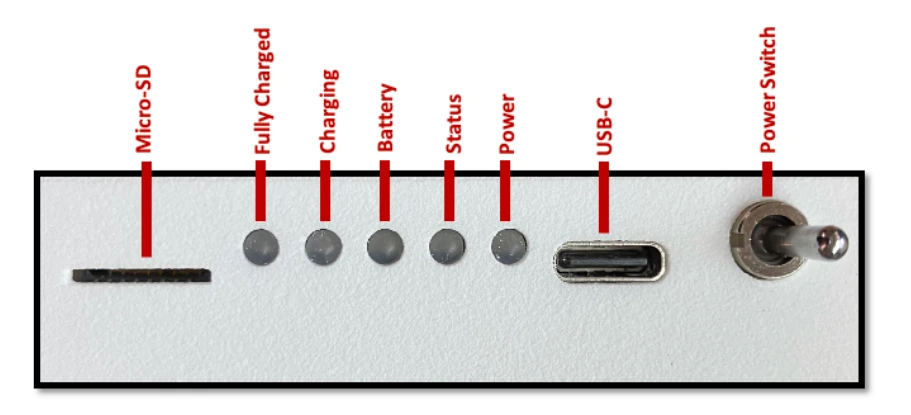
| Light | Pattern | Meaning |
|---|---|---|
| Power | Solid | OnFlight Hub is powered on. |
| Status | Off (Power light on) | The inertial navigation system (INS) has not initialized or GNSS reception no longer meets the required criteria. Ensure the antenna has a clear sky view. See Power and initialization. |
| Status | Solid | The INS is initialized and healthy, and a microSD card is present. |
| Status | Fast blink (twice per second) | No microSD card is detected. This indication requires firmware 7 or later. |
| Status | Slow blink (once per second) | A fault was detected during startup self-checks. Contact support@bolderflight.com. |
| Battery | Blinking | Battery voltage is below the configured warning threshold. Recharge the battery. |
| Battery | Solid | Battery voltage is below the configured low-voltage threshold. Recharge the battery as soon as possible. |
| Charging | Solid | The battery is charging. |
| Fully Charged | Solid | The battery is fully charged. |
If you plan to use ACROWRX for data analysis, follow their instructions for configuring OnFlight Hub.
2. Mount and align it
The image below shows the OnFlight Hub’s reference axes and the approximate location of its GNSS antenna.
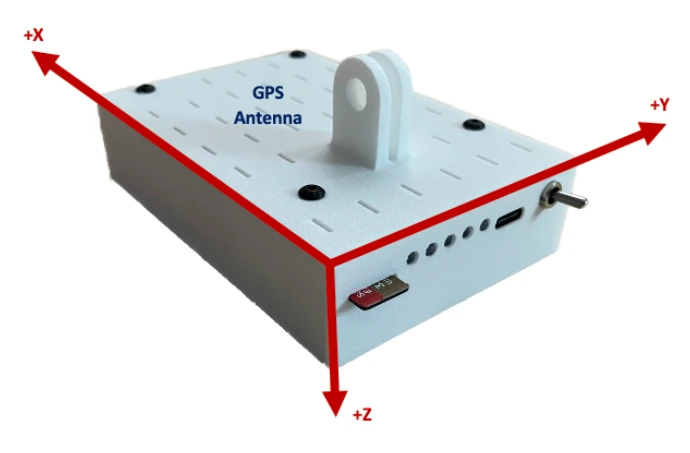
Mount the OnFlight Hub securely inside the cockpit with a clear view of the sky for its GNSS antenna. Note, there are two major versions of OnFlight Hub with differing mounting options:
V1 (above showing the axes): This version includes an integrated GoPro-style mount on the top of the case and a 1/4-20 (tripod) mount on the bottom.
V2 (below): The current version includes a flange with four through-holes sized for #6-32 screws. A tripod adapter is available separately.
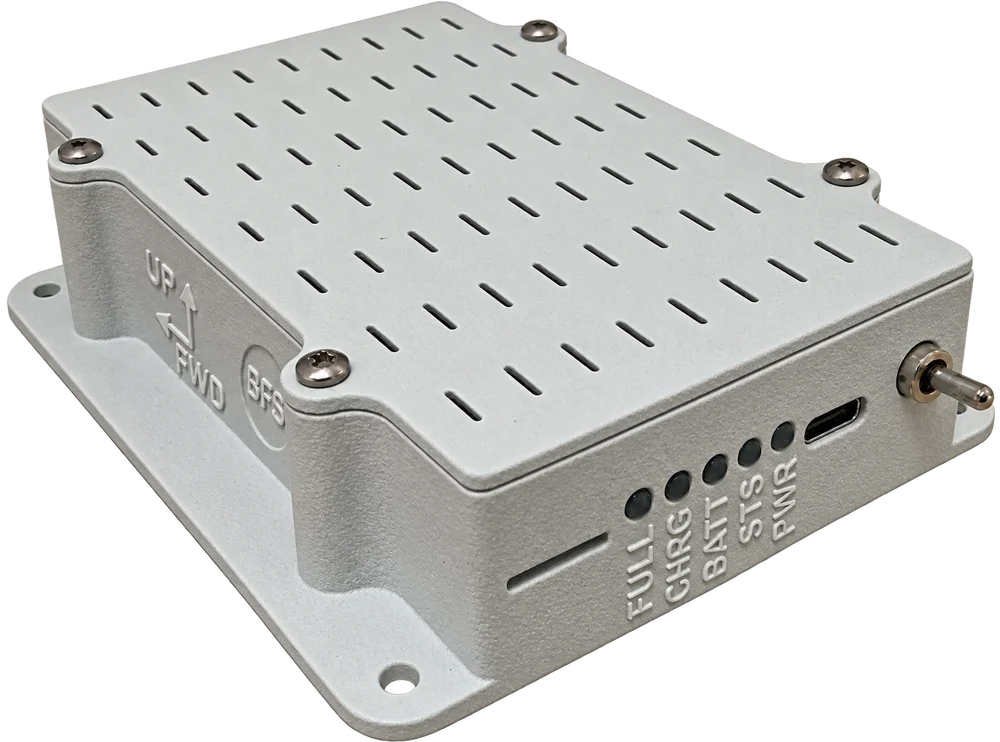
For accurate aerobatic data, we recommend using the tripod mount, mounting flange, or hook-and-loop fastener between the OnFlight Hub’s flat bottom and the glareshield; 3M Dual-Lock is recommended. The GoPro-style mount enabled engine vibration to add noise to the accelerometer data, which is why this option was removed in subsequent versions.
The default orientation is +X forward out the nose, +Y toward the right wing, and +Z down. Forward and Up arrows are embossed on the OnFlight Hub itself, to indicate the default orientation. If mounted differently, enter the appropriate rotation matrix during Configuration.
See Installation and orientation for mounting instructions, hardware limits, and orientation settings.
The pilot in command (PIC) is responsible for ensuring the OnFlight Hub is securely mounted and does not pose a hazard to the aircraft or its occupants.
3. Optional: Turn on Bluetooth sensors
If using a Bluetooth heart rate sensor or Stadia altimeter, power it on before the OnFlight Hub. Enable heart rate broadcasting on the heart rate sensor.
The OnFlight Hub searches for Bluetooth sensors during the first 10 seconds after boot. See External sensors for more information.
4. Optional: Connect and configure
Skip this step if the OnFlight Hub is already configured for your aircraft, mounting orientation, and recording preferences. A Wi-Fi connection is not required to record flight data and in most cases the default settings will not need to be changed.
- Turn on the OnFlight Hub and wait 30 seconds for the Wi-Fi network to initialize.
- Join the OnFlight Hub Wi-Fi network. The network name may be appended with the OnFlight Hub’s serial number. No password is required.
- Open http://192.168.23.1 in a browser.
- Review live data and update any needed configuration settings.
- Apply changes with the Update Config button. Changes may take several seconds to take effect, wait until the live data begins updating again.
See Configuration for more information on each setting.
5. Let it initialize before flight
Move your aircraft out of the hangar so the OnFlight Hub’s GNSS antenna has a clear sky view. Turn on the OnFlight Hub and keep it still for the first 5 seconds while it estimates and removes gyro biases.
Allow the INS to initialize while you conduct your preflight checks. A solid Status light indicates that the INS is initialized and healthy and a microSD card is present.
If the Power light is on but the Status light remains off, the OnFlight Hub is still waiting for GPS reception to meet its initialization requirements. Check that the GNSS antenna has a clear sky view.
Before starting the engine, check that the Status light is solid. The INS uses turns during taxi to align itself. Heading, ground track, and flight path angle require forward speed to produce accurate results.
6. Record and review
The OnFlight Hub records automatically to its microSD card while operating. You do not need to press a record button or maintain a Wi-Fi connection to record your flight.
To view live position and attitude in ForeFlight, Garmin Pilot, or another GDL 90 application, connect to the OnFlight Hub’s Wi-Fi and open the application.
After the flight, power off the OnFlight Hub before removing the microSD card. Copy the log files to your computer, then review or convert them using:
- ACROWRX: upload
.acrowrxfiles recorded with the OnFlight Hub to the ACROWRX web app. - FlySto: upload
.onflightfiles to the FlySto web app. - CloudAhoy: use the OnFlight Data Converter to convert
.onflightfiles to the CloudAhoy format and upload the CloudAhoy CSV file to the web app. - OnFlight Data Converter: Convert
.onflightfiles to CSV, MATLAB, or CloudAhoy formats.
See Recording and reviewing data for more information.